
A Simple Weekly Security Update Routine for Phones, Browsers, and Laptops

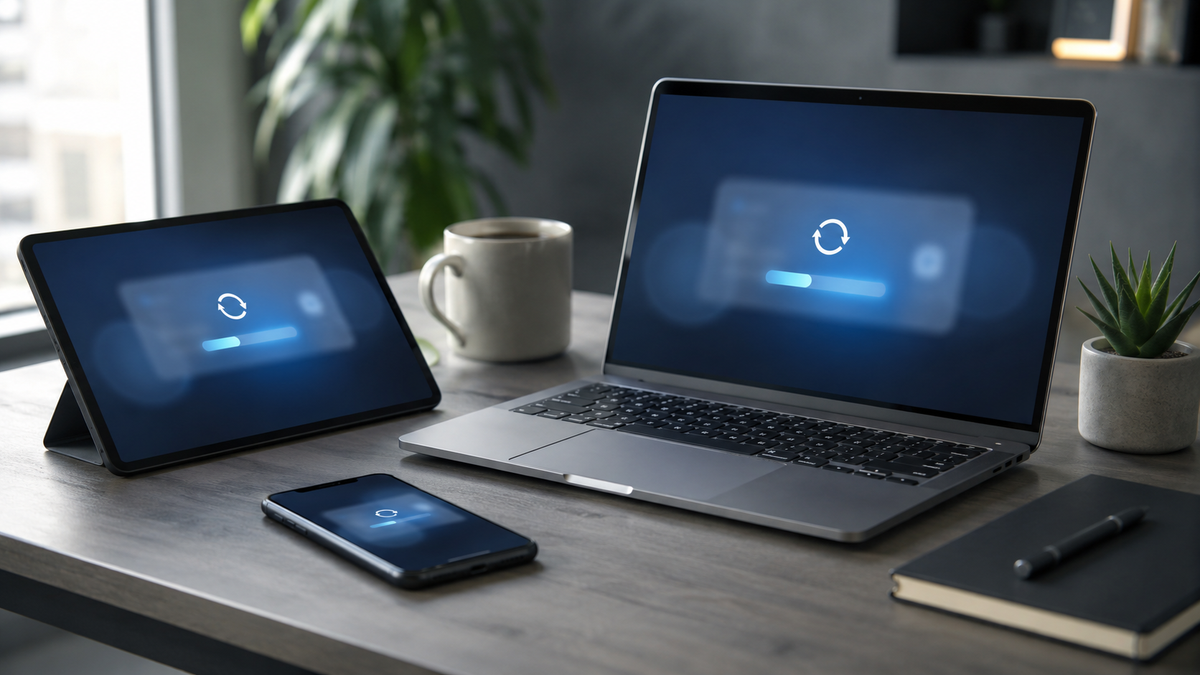
Security updates are easy to put off, but outdated software can leave your phone, browser, and laptop open to known security flaws.
Quick Answer
Turn on automatic updates wherever they are available, then do a short manual check once a week. A simple routine is usually enough for most people. CISA and the FTC both recommend keeping operating systems, browsers, and apps updated.
Simple Explanation
Updates are not only about new features. Many of them fix security issues that are already known and may be targeted if devices stay outdated.
A basic routine should cover three areas:
• Phone operating system
• Browser and extensions
• Laptop operating system and apps
Browsers such as Chrome and Firefox can update automatically, but the update often finishes only after a restart. That is why it helps to check and relaunch your browser regularly.
Practical Steps
- Pick one update day
Choose one regular time each week, such as Sunday evening or Monday morning. Keep it simple so it becomes a habit. - Check your phone
On iPhone, go to Settings, General, Software Update, then Automatic Updates. Apple says updates can download and install overnight while the device is charging and connected to Wi Fi.
On Android, check your settings for Android version, security update status, and Google Play system update status.
- Check your browser
Open Chrome, Firefox, Safari, Edge, or whichever browser you use most. Check for pending updates and remove extensions you no longer use. - Check your laptop
On Windows, use Windows Update. Microsoft says Windows 11 automatically downloads and installs updates to help keep devices secure and up to date.
On Mac, use Software Update. Apple recommends using the latest macOS version that is compatible with your device.
- Restart when needed
Do not leave updates waiting for days or weeks. A restart is often the final step that completes the protection.
Checklist
• Automatic updates turned on
• Phone security update checked
• Browser restarted after update
• Laptop update completed
• Unused apps and extensions removed
• Backup checked before major updates
Key Takeaways
• Updates help close known security weaknesses.
• A weekly routine is easier than random update reminders.
• Phones, browsers, laptops, apps, and extensions should all be included.
Sources: CISA, FTC, Google Chrome Help, Mozilla Support, Apple Support, Google Android Help, Microsoft Support.
Disclaimer: This article is provided for educational and informational purposes only. It does not constitute legal, financial, cybersecurity, or professional advice. Readers should verify important information through official sources before taking action.


